APPLICATION 01 / APPLE WATCH
dBwise
Sound awareness, on your wrist. Environmental sound-level monitoring for Apple Watch. Understand the sound around you, with haptic alerts and an estimate of your cumulative exposure.
01 / HOW IT HELPS
Know what’s around you.
Notice the moment.
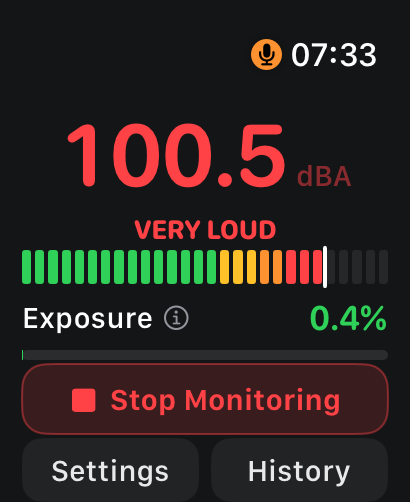
Monitor environmental sound levels and configure haptic noise alerts to suit your preferences.
See the bigger picture.
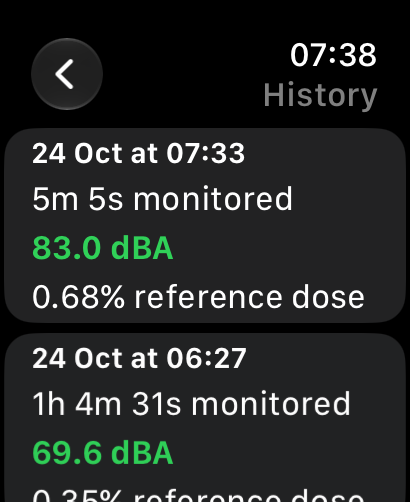
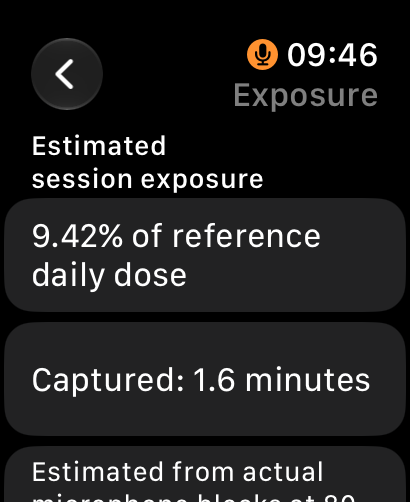
Review cumulative exposure estimates and session history to better understand your monitored sound environment.
Keep it close.
Use Apple Watch complications for at-a-glance information, with reminders when monitoring is interrupted.
IMPORTANT / MONITORING LIMITS
dBwise does not guarantee uninterrupted background monitoring. Siri and other system interruptions can stop microphone capture. The app can notify you when monitoring is interrupted; reopen dBwise to allow monitoring to resume.
Sound measurements and cumulative exposure are estimates. dBwise is not a certified hearing-protection instrument and is not a substitute for professional occupational dosimetry or medical advice.
02 / ON YOUR WATCH
A focused view of your sound.

03 / GET STARTED
Set up dBwise.
- Open dBwise on your Apple Watch and allow microphone access when prompted by watchOS.
- Review your noise-alert preferences in the app. Allow notifications if you want monitoring interruption reminders.
- Start a monitoring session in the app. Check that monitoring is active before relying on its readings.
- Reopen the app after a system interruption and confirm that monitoring has resumed.
- Review your session history and add a dBwise complication to a compatible watch face if you wish.
04 / TROUBLESHOOTING
A few useful checks.
Monitoring stopped after using Siri
Siri and other system activity can interrupt the microphone. Reopen dBwise and check that monitoring has resumed. A gap in monitoring means sound during that gap may not be represented in your estimates.
No sound readings appear
Check that dBwise has microphone permission in your watchOS privacy settings. Reopen the app and start monitoring. If the problem continues, contact support with your watch model and watchOS version.
I did not receive a reminder
Check that notifications are allowed for dBwise and review your Watch notification and Focus settings. System settings can affect whether you notice a reminder. Check monitoring status in the app.
Readings differ from another meter
Measurements are estimates and may vary with the device, calibration and conditions. Do not treat dBwise as a certified meter. If you contact support, describe the devices and conditions used for comparison.
How do I remove session history?
Use the session deletion controls in the app. Deleting a session does not necessarily remove separately maintained recent exposure or technical diagnostic state. See the privacy policy for more detail.
05 / SUPPORT & PRIVACY
Let’s work it out.
Email support@lowtech.uk with your Apple Watch model, watchOS version, dBwise version and a short description of what happened. Share only the information needed to explain the issue; do not send audio recordings or sensitive personal information.